

This guide is for small business owners, in-house marketers and freelancers who run Google Ads Search campaigns on a modest budget. When every dollar counts, the search terms report is one of the most direct ways to see where your money is going. Below you will find what the report shows, why it never shows everything, how to spot wasted spend, how negative keywords and their match types work, and the mistakes that trip up newer advertisers.
What the search terms report shows
According to Google Ads Help, the search terms report lists the actual searches that triggered your ads on the Search Network, together with their performance. That is different from your keyword list. Keywords are what you bid on; search terms are what people typed. With broader match types in particular, the two can be quite far apart.
In the Google Ads interface, Google’s help page describes the path as Campaigns in the left navigation panel, then the Insights and reports sub-menu, then Search terms. Menu labels change over time, so if yours differs, look for “Search terms” under the insights or reports area.
Two columns are especially useful. The Keyword column shows which of your keywords matched a search term, and Google notes it is hidden by default. To show it, open the column icon, choose Attributes, tick Keyword and select Apply. The Match type column shows how closely the search term relates to your keyword, including close variant matches.
Enjoying this? Get our best tips by email
Practical SEO, link building and content strategies, straight to your inbox.
Why not every search term is shown
The report is not a complete log of every query. Google’s help page says it includes only terms that a significant number of people searched and that generated impressions and clicks. Terms with too little query activity are left out to protect privacy. The page describes a related feature, search terms insights, which groups such queries into subthemes or an “other queries” category instead of listing them individually.
The practical consequence is that the rows in the report may not add up to your total spend. If you see a gap, that is expected behaviour rather than a bug. It also means you cannot clean up every low-volume query, so focus on the terms that are visible and costing you money.
A reported change: combined search terms and ad combinations
Industry coverage suggests the interface may be changing. Search Engine Roundtable reported on October 14, 2026 that Google Ads appears to be testing a report called “Search terms and ad combinations,” showing search terms alongside headlines, descriptions, landing pages and match sources. The site credits a PPC professional who shared a screenshot from one of her accounts, and describes the report as useful for advertisers running AI Max for Search campaigns.
Treat this as a reported test only. The article says Google “seems to be testing” it, does not say Google confirmed it, and does not state that it replaces the existing report. None of the Google help pages used for this guide describe it, so what you see in your own account may differ. The core workflow below applies either way: look at real queries, then decide what to block and what to keep.
How to find wasted spend
Set a date range long enough to include a meaningful number of clicks, then sort by cost. Google’s help page offers a simple illustration of the problem: if “wine glasses” triggers an ad for eyeglasses, you would add “wine” as a negative keyword so the ads stop showing for it. Look for the same pattern in your account.
- Sort the report by cost and read the top rows first. These are where the money is.
- Mark terms that are clearly off-topic for your offer, such as the wrong product, the wrong intent (jobs, free, repair when you sell new) or the wrong location.
- Check terms that look relevant but have spent without converting. Be patient here; a few clicks is rarely enough evidence.
- Note which of your keywords produced each bad term. Sometimes the fix is a tighter keyword, not a negative.
If your account relies on automated bidding, remember that it needs stable data to learn. Our guide to the Smart Bidding learning period explains why large, frequent changes can muddy results.
Adding negative keywords
Note that Google’s search terms report page states you cannot add keywords or negative keywords directly from the report editor. Use the regular negative keyword tools instead. Per Google Ads Help, the steps are:
- Choose all campaigns, or select a specific campaign (or ad group).
- Click Edit exclusions.
- Enter your negative keywords, one per line, making sure they do not overlap with keywords you want to show for.
- At campaign level you can tick Save to new or existing list to reuse the terms.
- Click Done.
Google’s page also says an account-level list applies across eligible Search and Shopping inventory, with a limit of 1,000 keywords at that level. Negative keyword lists are capped at 20 per account, with up to 5,000 keywords each. Limits can change, so check the current page before planning a large list.
Match types for negative keywords
Negative match types do not work like the ones for regular keywords. Google’s negative keyword page, using “running shoes” as the example, describes them this way:
| Match type | Behaviour | Blocked | Not blocked |
|---|---|---|---|
| Broad (default) | All the terms, in any order | blue running shoes; shoes running | running shoe |
| Phrase | Same order, other words allowed | blue running shoes | shoes running |
| Exact | Exact terms only, no extra words | running shoes | blue running shoes |
Two further points from the same page matter. Negatives do not match close variants, so a broad negative “flowers” will not block “red flower”; you need to add singular, plural and synonym forms yourself. Casing and misspellings are handled automatically. As a rule of thumb, broad negatives are the most aggressive for multi-word terms, while exact negatives are the safest when a word is harmful in one phrase but valuable in others.
Adding good terms as keywords
The report also surfaces searches you had not planned for. Google Ads Help says it can be used to add new keywords, and notes that unexpected terms may suggest updates to your ad copy and landing page. The help pages opened for this guide do not detail the steps for adding a term as a keyword, so add it through your normal keyword workflow in the relevant ad group.
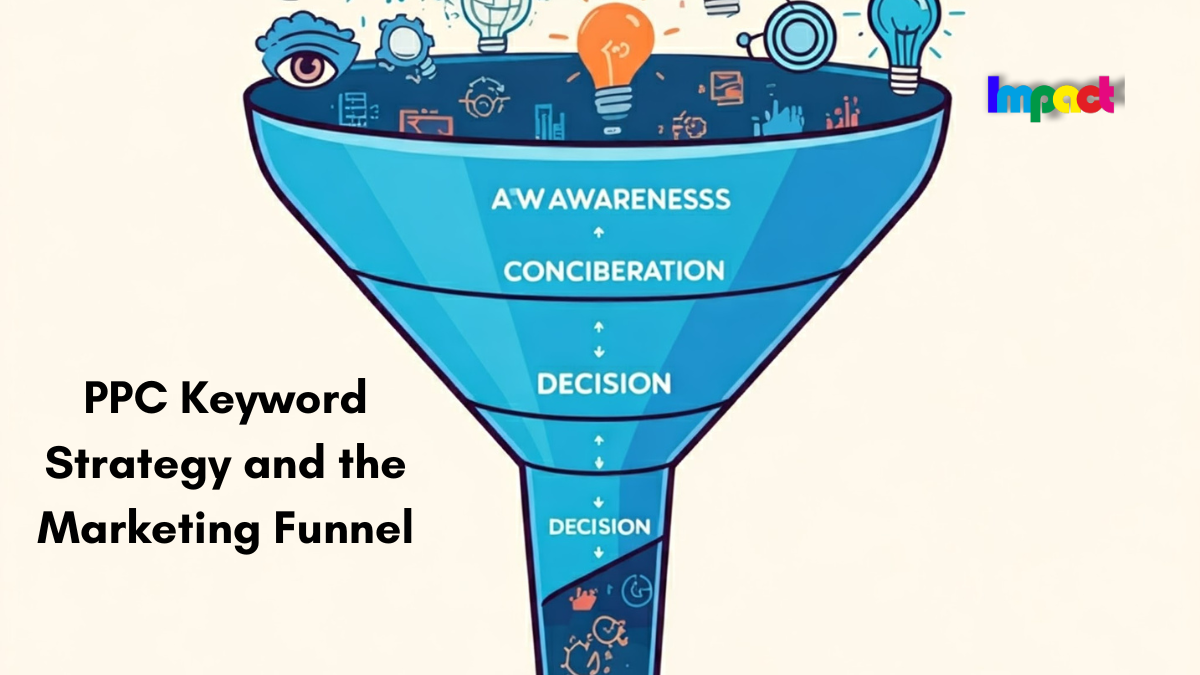
Good candidates are terms that are relevant, have produced clicks or conversions, and are not yet covered by an exact or phrase keyword. Place each in the ad group whose ads and landing page fit it best. For help grouping keywords by intent, see our piece on PPC keyword strategy and the marketing funnel.
How often to review
Google’s pages used here do not prescribe a review schedule, so what follows is a practical suggestion rather than an official rule. New campaigns and accounts with broader match types usually benefit from more frequent checks, because irrelevant queries show up early. Established, stable campaigns can often be reviewed less often. Many small advertisers pick a regular slot, such as weekly at first and monthly later, and scale it to how much they spend and how fast the account changes.
Common mistakes
- Blocking too much too fast. A negative that overlaps with a keyword you want can stop your ads from showing, as Google warns.
- Judging on tiny data. One or two clicks without a sale rarely prove a term is bad.
- Forgetting plurals and synonyms. Negatives do not cover close variants.
- Ignoring the hidden Keyword column. Without it, you cannot tell which keyword caused a bad match.
- Expecting full visibility. Low-volume queries are left out for privacy.
- Never reviewing ad copy. Search terms reveal how people phrase their needs; use that language. For broader ideas, see our guide to improving Google Ads visibility.
Key takeaways
- The search terms report shows real queries that triggered your Search ads, not just your keywords.
- It leaves out low-volume terms for privacy, so it will not show everything.
- Sort by cost, remove clearly irrelevant terms with negatives, and be patient with ambiguous ones.
- Negative broad, phrase and exact match behave differently from positive keywords and ignore close variants.
- A combined search terms and ad combinations report has been reported, but only as an apparent test.
FAQ
Why does the report not show all my queries?
Google says it includes only terms that enough people searched and that generated impressions and clicks. Rarer queries are omitted to protect privacy.
Can I add negative keywords straight from the report editor?
Google’s help page says you cannot add keywords or negative keywords directly from the report editor. Use Edit exclusions in the negative keyword tools instead.
Which negative match type should I use?
Broad is the default and blocks any search containing all the terms. Choose phrase to keep word order, or exact to block only that precise search.
Has Google merged the search terms and ad combinations reports?
It is unconfirmed. Search Engine Roundtable reported an apparent test of a combined report on October 14, 2026, but the Google help pages checked here do not mention it.